Discord Server Banner Resizer
Upload an image to crop, resize, and optimize pixel dimensions.
Select Image to Resize
JPG, PNG, WebP supported.
Discord Server Banner Requirements (2026)
- 📐Size: 960 × 540 pixels (16:9 aspect ratio verified)
- 📄Format: JPG, PNG, or GIF (animated GIFs supported)
- 💾File Size: Maximum 10MB
- 🎯Requirement: Server Boost Level 2 or higher
- ✨Quality: HD resolution, 16:9 widescreen format
Create Stunning Discord Server Banners
Make your Discord server stand out with a professional banner! Our Discord Server Banner Resizer automatically formats your image to 960 × 540 pixels - the perfect 16:9 HD resolution required by Discord for Level 2+ boosted servers.
Discord Server Banner Specifications
Discord has specific requirements for server banners:
- Dimensions: 960 × 540 pixels (exact)
- Aspect Ratio: 16:9 (widescreen HD format)
- File Format: JPG, PNG, or GIF
- File Size: Maximum 10MB
- Animated: GIF animations supported
- Server Requirement: Boost Level 2 (7 boosts minimum)
- Color Mode: RGB
💎 Server Boost Requirement
Server banners are a Level 2 perk. Your server needs at least 7 boosts to unlock this feature. Once unlocked, you can customize your server's appearance with a banner that displays at the top of your server.
How to Upload Discord Server Banner
Desktop App:
- Open Discord and go to your server
- Click Server Settings (gear icon)
- Go to Overview section
- Scroll to Server Banner
- Click Upload Banner
- Select your 960×540 image
- Adjust position if needed
- Click Save Changes
Mobile App:
- Open Discord mobile app
- Long-press your server icon
- Tap Settings
- Tap Overview
- Tap Server Banner
- Upload your 960×540 image
- Tap Save
Design Tips for Discord Server Banners
✅ Best Practices:
- Use high-resolution images (960×540 minimum)
- Choose colors that match your server theme
- Include your server name or logo
- Use readable fonts (minimum 40px size)
- Keep important elements centered
- Test on both desktop and mobile
- Consider your server icon placement (left side)
❌ Avoid:
- Cluttered designs with too many elements
- Low-resolution or pixelated images
- Text that's too small to read
- Colors that clash with Discord's UI
- Copyrighted images without permission
- Offensive or inappropriate content
🎨 Creative Banner Ideas:
- Gaming Servers: Game artwork, character art, or screenshots
- Community Servers: Abstract patterns, gradients, or community photos
- Educational Servers: Clean, professional designs with server name
- Anime/Manga: Favorite series artwork or character collages
- Music Servers: Album art, instruments, or music visualizations
- Art Servers: Showcase member artwork or creative designs
Discord Server Banner vs Profile Banner
Discord has two types of banners with different specifications:
- Server Banner: 960×540 pixels (this page) - Requires Level 2 boost
- Profile Banner: 600×240 pixels - Requires Discord Nitro
Animated Server Banners
Discord supports animated GIF banners:
- Format: Animated GIF only
- Size: Still 960×540 pixels
- File Size: Under 10MB (compress if needed)
- Frame Rate: 30 FPS recommended
- Duration: 2-5 seconds loop recommended
- Tip: Keep animations subtle for better user experience
Server Boost Levels & Perks
Understanding Discord's boost system:
- Level 1 (2 boosts): Custom server invite background, 128 Kbps audio
- Level 2 (7 boosts): Server banner (960×540), 256 Kbps audio, custom stickers
- Level 3 (14 boosts): Vanity URL, 384 Kbps audio, animated server icon
Common Discord Banner Errors
Error: "Server not boosted enough"
- Cause: Server is below Level 2 (less than 7 boosts)
- Solution: Get more server boosts to reach Level 2
Error: "Invalid dimensions"
- Cause: Image is not exactly 960×540 pixels
- Solution: Use this resizer to get exact dimensions
Error: "File too large"
- Cause: File exceeds 10MB limit
- Solution: Compress image or convert to JPG
💡 Pro Server Owner Tips:
- Update banner seasonally (holidays, events)
- Match banner colors with server roles
- Use banner to announce server events
- A/B test different designs to see what members prefer
- Keep a consistent brand across icon, banner, and invite background
Free Tools for Creating Discord Banners
- Canva: Free templates and design tools
- Photopea: Free online Photoshop alternative
- GIMP: Free desktop graphics editor
- Figma: Free design tool with Discord templates
- Adobe Express: Quick banner creator
Banner Design Trends 2026
Popular Discord server banner styles:
- Gradient Backgrounds: Smooth color transitions
- Minimalist: Simple, clean designs
- Dark Mode Optimized: Colors that work with Discord's dark theme
- Glassmorphism: Frosted glass effects
- Neon/Cyberpunk: Bright neon colors on dark backgrounds
- Pixel Art: Retro gaming aesthetic
Optimizing for Different Devices
Your banner displays differently across devices:
- Desktop: Full 960×540 visible at top of server
- Mobile: Cropped to fit smaller screens
- Tablet: Partial view depending on orientation
- Web Browser: Full size in browser version
✅ Perfect Discord Server Banner Checklist:
- ✓ Exactly 960×540 pixels
- ✓ 16:9 aspect ratio
- ✓ JPG, PNG, or GIF format
- ✓ Under 10MB file size
- ✓ High resolution, no pixelation
- ✓ Matches server theme/branding
- ✓ Readable text (if included)
- ✓ Tested on desktop and mobile
- ✓ Server is Level 2 boosted
Server Branding Strategy
Create a cohesive server identity:
- Server Icon: 512×512 pixels (circular crop)
- Server Banner: 960×540 pixels (this page)
- Invite Background: 1920×1080 pixels (Level 1 perk)
- Color Scheme: Use consistent colors across all assets
- Typography: Use same fonts for professional look
Measuring Banner Effectiveness
Track how your banner impacts your server:
- Monitor new member join rates after banner changes
- Ask for feedback in server announcements
- Compare engagement before/after banner updates
- Test seasonal banners during events
Need a custom image size?
Use our universal Image Resizer tool to crop and resize your images to any custom dimensions.
Related Image Tools
Roblox Shirt Template Resizer
Resize images to Roblox shirt template size (585x559 pixels exactly)
Steam Avatar Resizer
Resize images to Steam avatar size (184x184 pixels)
Indian Passport Photo Resizer
Resize photos to Indian passport size (2x2 inch / 51mm x 51mm / 600x600 pixels)
US Visa Photo Resizer
Resize photos to US visa size (600x600 pixels / 2x2 inches)
Telegram Sticker Maker
Resize images to Telegram sticker size (512x512 pixels PNG/WebP)
Google Business Cover Resizer
Resize images to Google Business cover photo size (1024x576 pixels)
Etsy Shop Banner Resizer
Resize images to Etsy shop banner size (1600x400 pixels)
Discord Profile Banner Resizer
Resize images to Discord profile banner size (600x240 pixels)
Related Image & Media Tools
Handpicked utility tools from the same category that you might find useful.
Screenshot to Text (OCR)
Extract text from images using OCR technology
Image Blur Editor
Blur and redact sensitive information in images
Image Compressor
Compress JPG, PNG & WebP images up to 80% without losing quality
Image Resizer
Resize and crop JPG, PNG & WebP images to exact pixel dimensions
Christmas Wishes Image Generator
Create personalized Christmas wishes images for free
Instagram Post Resizer
Resize images to Instagram square post size (1080x1080) instantly.
Related Articles
Insights and guides to help you make the most of our tools.
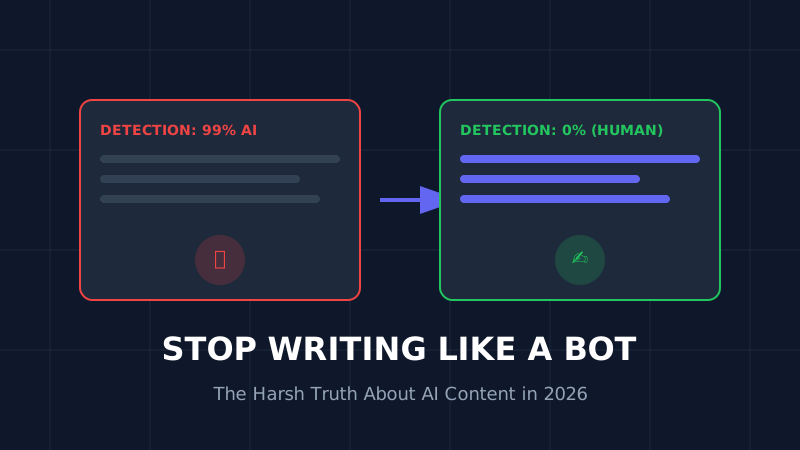
The AI Content Trap (2026): Why 90% of AI Blogs Will Fail and How to Save Yours
Stop writing like a bot. That deadly generic AI opening is killing your SEO. Learn why 90% of AI blogs will fail in 2026 and the exact humanization techniques that turn robotic writing into rankable content.
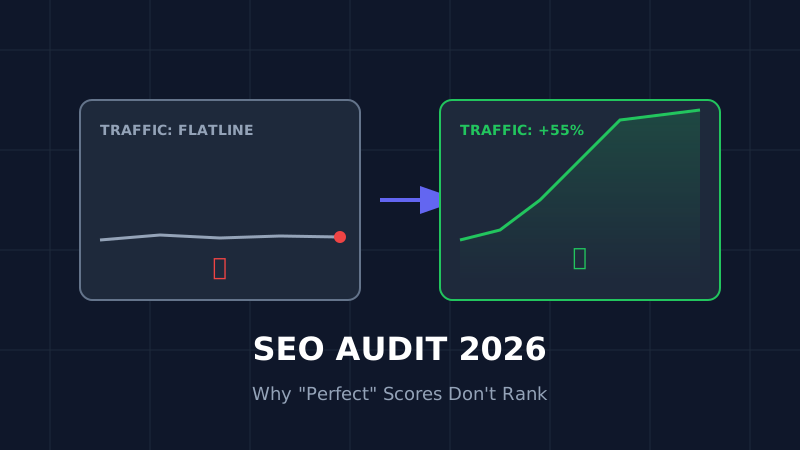
The Ultimate SEO Audit Checklist (2026): Why Your "Perfect" Site Is Invisible
Your site has 100/100 speed score but zero traffic? Stop optimizing for 2023. Here is the brutal, no-fluff SEO audit for 2026 that focuses on the only metrics that matter: Core Web Vitals and User Signals.

How to Resize Photos for Govt Exams (UPSC/SSC) So Your Application Doesn't Get Rejected
Imagine studying for 12 months, only to have your application rejected because your photo was 5KB too large. Don't risk it. Here is the exact guide to resizing photos for UPSC, SSC, and Bank exams.