Discord Profile Banner Resizer
Upload an image to crop, resize, and optimize pixel dimensions.
Select Image to Resize
JPG, PNG, WebP supported.
Discord Profile Banner Requirements (2026)
- 📐Safe Zone: 600 × 240 pixels (2026 correction - no mobile crop!)
- 📱Mobile Safe: Entire banner visible on all devices
- 📄Format: JPG, PNG, or GIF
- 💾File Size: Under 10MB
Create Perfect Discord Profile Banners
Customize your Discord profile with a stunning banner! Use 600 × 240 pixels - the 2026 safe zone that prevents cropping on mobile devices.
🆕 2026 Update: Why 600×240?
Discord updated the safe zone from 680px to 600×240 pixels because:
- 680px gets cropped on mobile devices
- 600×240 is the guaranteed visible area
- No important content gets cut off
Discord Profile Banner Specifications
- Safe Zone: 600 × 240 pixels (recommended)
- Maximum: 680 × 240 pixels (may crop on mobile)
- Aspect Ratio: 2.5:1
- File Format: JPG, PNG, or GIF
- File Size: Maximum 10MB
- Requirement: Discord Nitro subscription
How to Upload Discord Profile Banner
- Open Discord (desktop or mobile)
- Click your profile picture
- Click Edit User Profile
- Click Change Banner
- Upload your 600×240 image
- Adjust position if needed
- Click Save Changes
Design Tips for Discord Banners
- Keep important elements in the center 600px width
- Avoid placing text near edges
- Use colors that match your profile theme
- Test on both desktop and mobile
- Consider your profile picture placement (bottom left)
💡 Creative Banner Ideas:
- Gradient backgrounds matching your theme
- Favorite game/anime artwork
- Abstract patterns and shapes
- Minimalist solid colors
- Personal photography
Need a custom image size?
Use our universal Image Resizer tool to crop and resize your images to any custom dimensions.
Related Image Tools
Roblox Shirt Template Resizer
Resize images to Roblox shirt template size (585x559 pixels exactly)
Steam Avatar Resizer
Resize images to Steam avatar size (184x184 pixels)
Indian Passport Photo Resizer
Resize photos to Indian passport size (2x2 inch / 51mm x 51mm / 600x600 pixels)
US Visa Photo Resizer
Resize photos to US visa size (600x600 pixels / 2x2 inches)
Telegram Sticker Maker
Resize images to Telegram sticker size (512x512 pixels PNG/WebP)
Google Business Cover Resizer
Resize images to Google Business cover photo size (1024x576 pixels)
Etsy Shop Banner Resizer
Resize images to Etsy shop banner size (1600x400 pixels)
Discord Server Banner Resizer
Resize images to Discord server banner size (960x540 pixels)
Related Image & Media Tools
Handpicked utility tools from the same category that you might find useful.
Screenshot to Text (OCR)
Extract text from images using OCR technology
Image Blur Editor
Blur and redact sensitive information in images
Image Compressor
Compress JPG, PNG & WebP images up to 80% without losing quality
Image Resizer
Resize and crop JPG, PNG & WebP images to exact pixel dimensions
Christmas Wishes Image Generator
Create personalized Christmas wishes images for free
Instagram Post Resizer
Resize images to Instagram square post size (1080x1080) instantly.
Related Articles
Insights and guides to help you make the most of our tools.
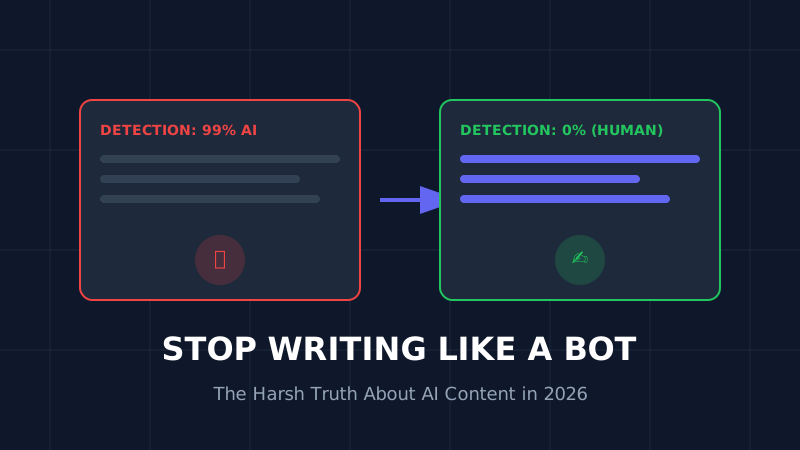
The AI Content Trap (2026): Why 90% of AI Blogs Will Fail and How to Save Yours
Stop writing like a bot. That deadly generic AI opening is killing your SEO. Learn why 90% of AI blogs will fail in 2026 and the exact humanization techniques that turn robotic writing into rankable content.
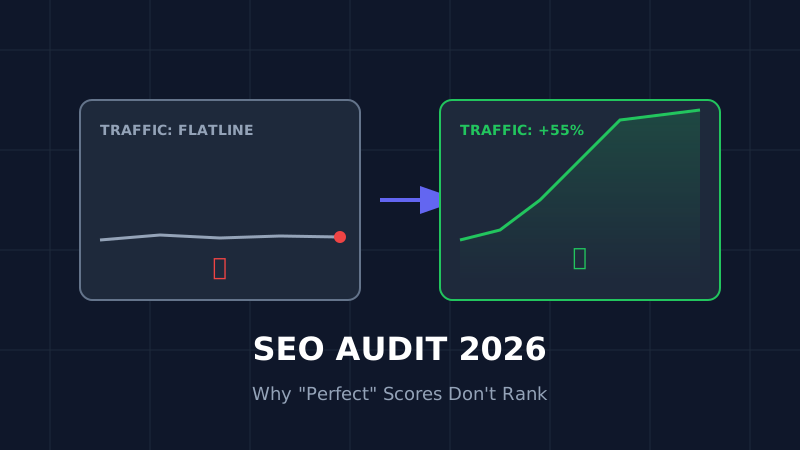
The Ultimate SEO Audit Checklist (2026): Why Your "Perfect" Site Is Invisible
Your site has 100/100 speed score but zero traffic? Stop optimizing for 2023. Here is the brutal, no-fluff SEO audit for 2026 that focuses on the only metrics that matter: Core Web Vitals and User Signals.

How to Resize Photos for Govt Exams (UPSC/SSC) So Your Application Doesn't Get Rejected
Imagine studying for 12 months, only to have your application rejected because your photo was 5KB too large. Don't risk it. Here is the exact guide to resizing photos for UPSC, SSC, and Bank exams.