Free Image Resizer Online
Resize, crop, and scale your photos to exact pixel dimensions. 100% private, browser-based processing.
Image Resizer & Cropper
Upload an image to crop, resize, and optimize pixel dimensions.
Select Image to Resize
JPG, PNG, WebP supported.
How to Use This Tool
Upload Image
Select the photo you want to resize from your device.
Crop (Optional)
Use the interactive cropping box to frame a specific part of your photo.
Set Dimensions
Enter the exact width and height you need in pixels.
Maintain Aspect Ratio
Keep the lock icon closed to prevent your image from looking stretched.
Download
Save the perfectly resized image back to your computer.
Key Features & Benefits
Exact Pixel Control
Specify the exact width and height you need down to the individual pixel.
Built-in Cropper
Crop and resize simultaneously in one smooth workflow.
Aspect Ratio Lock
Automatically calculate height when you change width to prevent distortion.
Zero Uploads
Your photos never leave your device. Complete privacy guaranteed.
Multiple Formats
Works seamlessly with JPG, PNG, and WebP image formats.
Instant Processing
No waiting in queues or uploading to slow servers. Immediate results.
Who is this for?
Social Media Managers
Create perfect Instagram posts, Twitter headers, and YouTube thumbnails without awkward auto-cropping.
Web Developers
Scale massive hero images down to precise container sizes to improve Core Web Vitals.
eCommerce Owners
Standardize your product catalog by making all product photos the exact same square dimensions.
Bloggers & Creators
Quickly format featured images for articles to ensure they display beautifully in RSS feeds.
Why Correct Image Dimensions Matter
Using the wrong image size can lead to stretched, blurred, or poorly cropped photos on social media, or severely slow down your website.
For Web Performance
If your website displays an image at 800x600 pixels, but you upload a 4000x3000 pixel file, the browser has to download the massive file and resize it on the fly. This wastes bandwidth and drastically lowers your PageSpeed score. Resizing your images to their exact display dimensions is a critical SEO and web development best practice.
For Social Media Consistency
Every platform has strict requirements. Instagram stories need a 9:16 aspect ratio (1080x1920). Twitter headers need 1500x500. By resizing and cropping your images precisely before uploading, you prevent the platform's automated algorithms from awkwardly cropping out important parts of your photo.
Browser-Based Resizing
Unlike cloud-based tools that force you to upload your sensitive photos, wait in a queue, and then download them back, our tool uses HTML5 Canvas technology to perform the mathematical resizing locally on your device's RAM. It's infinitely faster and 100% private.
Frequently Asked Questions
Upload your image, use the crop tool to select the area you want (or select the whole image), then enter your desired width and height in pixels. Click download to get your resized image.
Yes, our tool combines resizing and cropping. You can zoom and pan to select a specific part of your image before resizing it.
Yes, all resizing and cropping happens locally in your web browser. No images are uploaded to any external server.
Making an image smaller (downscaling) generally preserves quality. Making an image larger (upscaling) may introduce pixelation. We use high-quality rendering to minimize artifacts.
We support resizing for standard web formats including JPEG, PNG, and WebP.
Yes! We have presets for popular platforms like Instagram, Twitter, YouTube, and Facebook to ensure perfect fits.
Related Tools You Might Like



Related Image & Media Tools
Handpicked utility tools from the same category that you might find useful.
Screenshot to Text (OCR)
Extract text from images using OCR technology
Image Blur Editor
Blur and redact sensitive information in images
Image Compressor
Compress JPG, PNG & WebP images up to 80% without losing quality
Christmas Wishes Image Generator
Create personalized Christmas wishes images for free
Instagram Post Resizer
Resize images to Instagram square post size (1080x1080) instantly.
Instagram Story Resizer
Resize images to Instagram story dimensions (1080x1920) instantly.
Related Articles
Insights and guides to help you make the most of our tools.
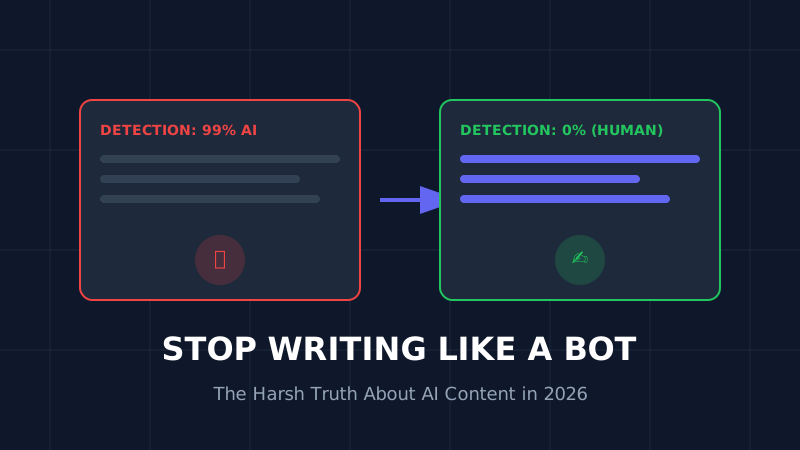
The AI Content Trap (2026): Why 90% of AI Blogs Will Fail and How to Save Yours
Stop writing like a bot. That deadly generic AI opening is killing your SEO. Learn why 90% of AI blogs will fail in 2026 and the exact humanization techniques that turn robotic writing into rankable content.
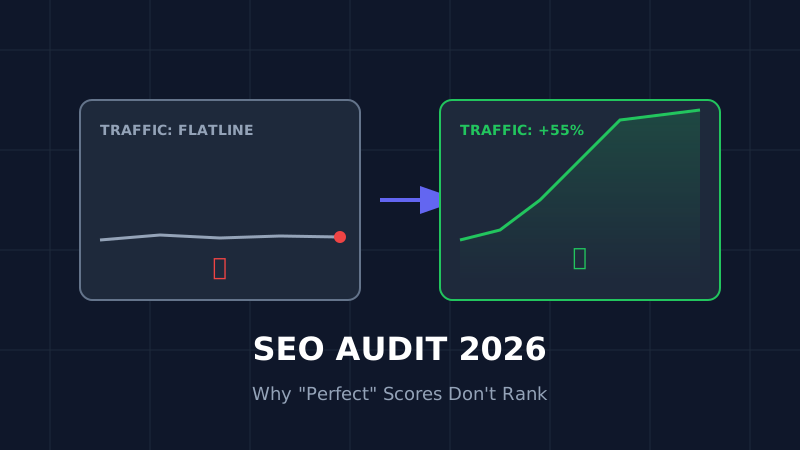
The Ultimate SEO Audit Checklist (2026): Why Your "Perfect" Site Is Invisible
Your site has 100/100 speed score but zero traffic? Stop optimizing for 2023. Here is the brutal, no-fluff SEO audit for 2026 that focuses on the only metrics that matter: Core Web Vitals and User Signals.

How to Resize Photos for Govt Exams (UPSC/SSC) So Your Application Doesn't Get Rejected
Imagine studying for 12 months, only to have your application rejected because your photo was 5KB too large. Don't risk it. Here is the exact guide to resizing photos for UPSC, SSC, and Bank exams.