HEIC to JPG Converter
Convert Apple iPhone photos (HEIC/HEIF) into standard JPG format instantly. 100% private, no uploads.
How to Use This Tool
Select HEIC Photos
Drag and drop one or multiple HEIC files from your device into the dropzone.
Adjust Quality
Use the slider to balance output image quality and final file size.
Convert
Click the convert button to instantly decode and process the images locally.
Download
Save the converted JPGs individually or pack them all into a ZIP file.
Key Features & Benefits
Batch Processing
Convert dozens of iPhone photos at the exact same time.
Local Decoding
Utilizes advanced WebAssembly to decode HEIC files directly in your CPU.
Universal Compatibility
Transforms Apple's proprietary format into the globally recognized JPG standard.
Zero Uploads
Your private photos never leave your device, ensuring total security.
Quality Control
You decide whether you want a lossless equivalent or a highly compressed web image.
Instant Speed
Because nothing is uploaded to a server, the conversion is practically instantaneous.
Who is this for?
Windows Users
View and edit photos transferred from an iPhone without buying paid HEVC extensions from the Microsoft Store.
Web Developers
Convert user-uploaded iPhone photos into web-safe JPGs before embedding them into an HTML page.
Job Applicants
Ensure your headshot or scanned resume is in a universally readable format before uploading to an HR portal.
Why Can't I Open HEIC Files on My PC?
Apple introduced the HEIC (High-Efficiency Image Container) format in iOS 11. It's a fantastic innovation because it stores extremely high-quality photos at half the file size of a traditional JPEG. However, this came with a massive downside: compatibility.
The Compatibility Nightmare
If you transfer photos from your iPhone to a Windows PC, an older Mac, or an Android device, you might be greeted with a blank icon or an error message. Many older operating systems, web browsers, and even social media platforms do not natively support decoding HEIC files.
Why JPG is Still King
JPG (or JPEG) has been the universal standard for digital images for decades. Every single device, web browser, and app on the planet knows how to read and display a JPG file. Converting your HEIC photos to JPG ensures 100% compatibility across all systems.
Local Conversion for Photo Privacy
You probably don't want to upload your personal family vacation photos or sensitive document scans to a random cloud server just to change their file format. That's why our tool uses WebAssembly and local JavaScript to decode the HEIC file and encode it as a JPG directly inside your browser. No uploads, no waiting, no privacy risks.
Frequently Asked Questions
HEIC (High Efficiency Image Container) is the modern file format used by iPhones and iPads. It offers high quality at smaller file sizes but isn't supported everywhere.
Simply drag and drop your files into our browser-based tool. It works instantly on Windows, Mac, or Linux without installing any software.
Yes. Our tool runs 100% in your browser. Your photos are never uploaded to any server, ensuring complete privacy.
Yes, you can select multiple HEIC files at once and convert them all to JPG in a single click.
You can control the quality using our slider. Converting to JPG usually involves minimal compression, but visually the images remain sharp.
Related Conversion & Utility Tools
Handpicked utility tools from the same category that you might find useful.
Image to PDF Converter
Convert images to PDF documents
PDF to Image Converter
Convert PDF pages to image files
Convert Case Online
Instantly convert text case: Uppercase, Lowercase, Title Case & more.
JPG to PNG Converter
Convert JPG to PNG transparent format instantly
PNG to JPG Converter
Convert PNG to JPG format instantly for smaller file sizes
PDF Compressor
Compress PDF files online for free. Reduce PDF size significantly
Related Articles
Insights and guides to help you make the most of our tools.
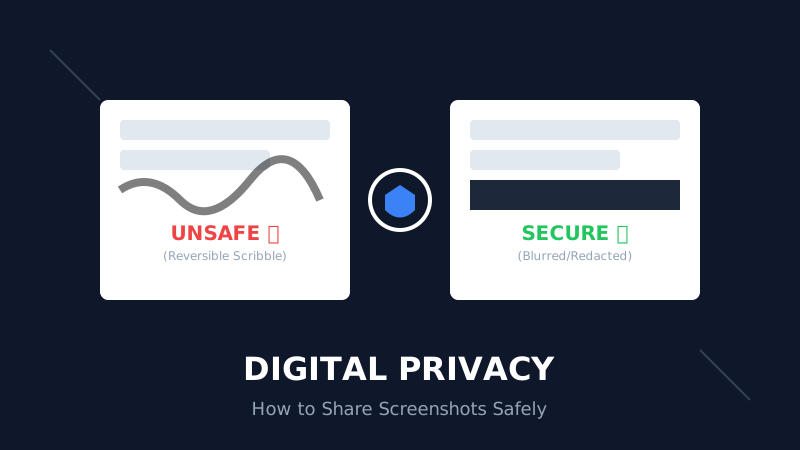
The Digital Privacy Handbook: How to Safely Share Screenshots Without Leaking Personal Data
That 'swirl' you drew over your bank details? It's not hiding anything. Learn why standard markup tools fail and how to properly redact sensitive info before sharing online.
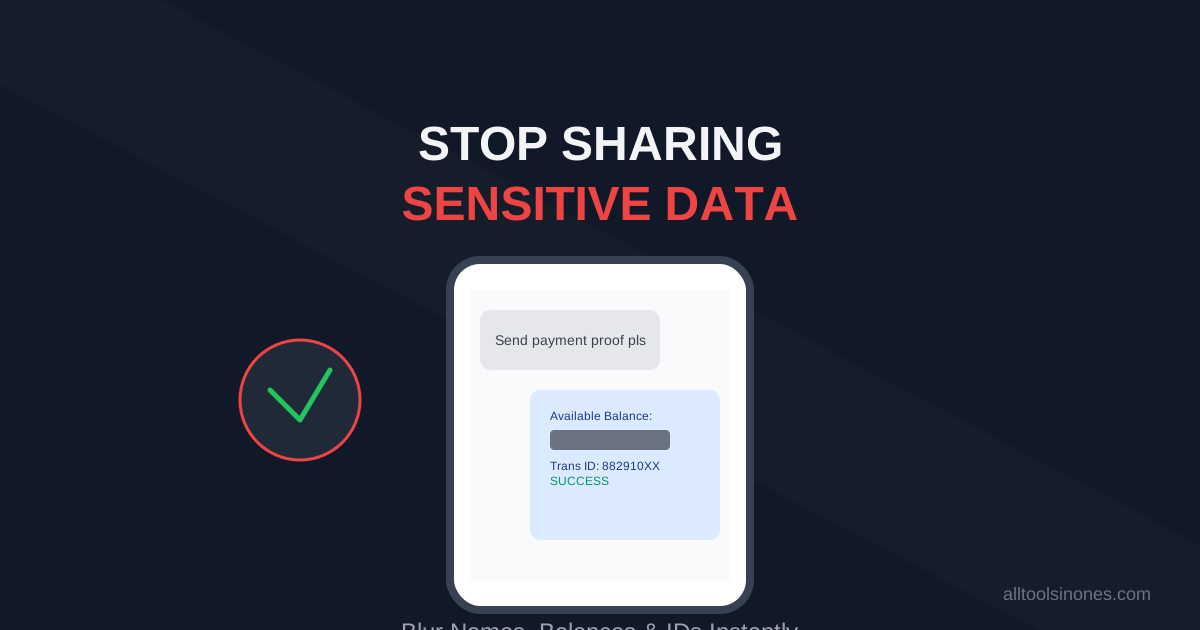
How to Blur Text in Screenshots Before Sharing (Stop Leaking Your Data)
Sending a payment screenshot or an email thread? Stop! You might be exposing your bank balance, address, or passwords. Learn how to securely blur text in images online in 5 seconds.
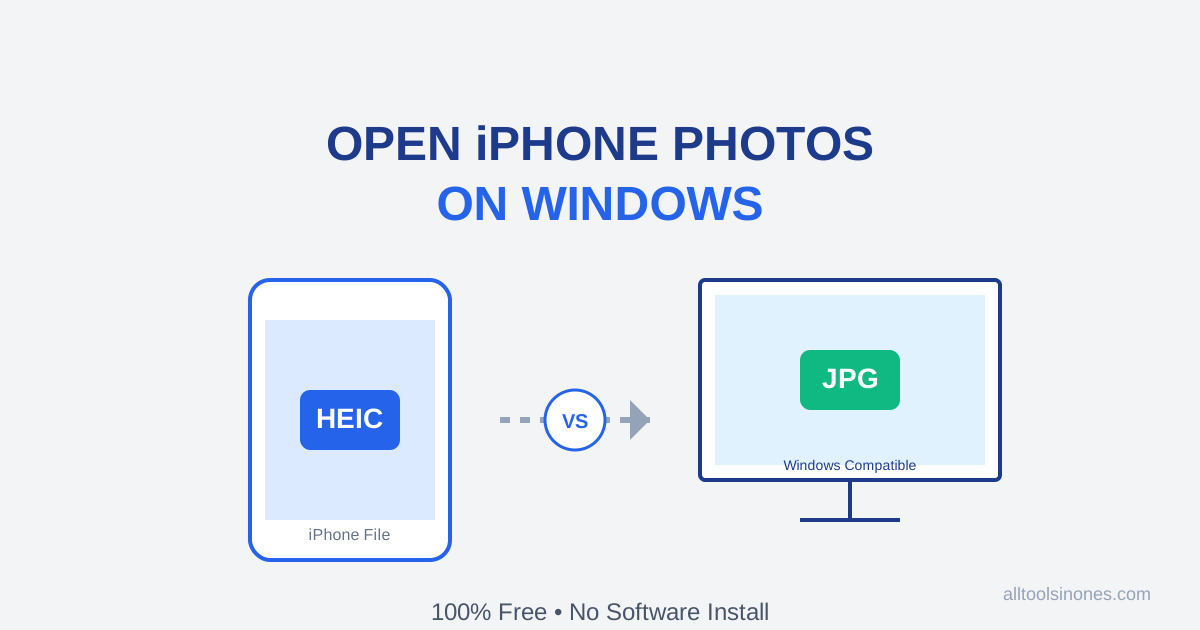
How to Open iPhone Photos (HEIC) on Windows 10/11 for Free (Don't Buy the $0.99 Extension)
Transferred photos from iPhone to PC and can't open them? Windows wants you to pay $0.99 for a HEIC codec. Don't do it. Here is the fast, free, and secure way to convert HEIC to JPG instantly.