We do it every day.
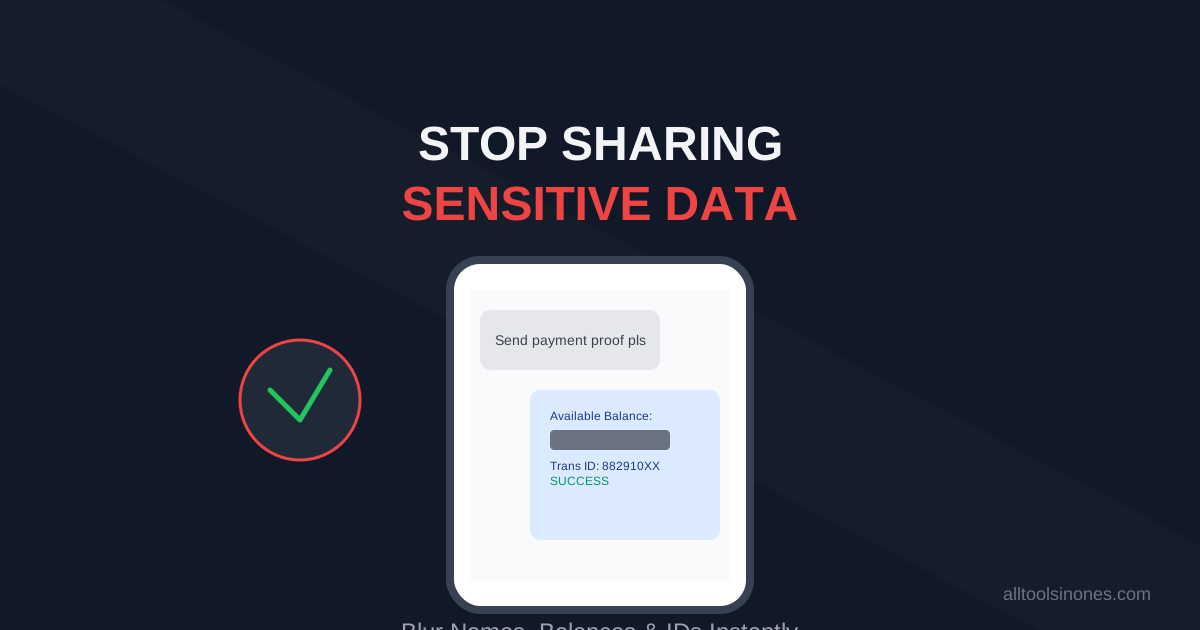
You pay your rent via UPI/Neobank, take a screenshot, and WhatsApp it to your landlord. You snapshot an email error and send it to IT support. You share a funny text conversation on Instagram.
But look closer at that image.
Did you accidentally capture your Bank Account Balance? Your Home Address? Your Full Legal Name?
These tiny crumbs of data are gold for identity thieves. And once you hit "Send," you can't take it back.
The "Black Marker" Problem
Most people try to fix this by opening their phone's photo editor and scribbling over the sensitive part with the "Pen" tool.
Bad idea.
Researchers have proven that many "blacked out" texts can be recovered by simply adjusting brightness and contrast, because the digital marker is often semi-transparent (not 100% opaque). If you use the iPhone highlighter tool, you are basically highlighting your secret, not hiding it.
The Secure Solution: True Blurring
The only safe way to redact data is to destroy the pixel information completely using a Blur or Pixelate effect.
How to Blur Screenshots Online (Free & Private)
You don't need Photoshop for this. We built a dedicated privacy tool that runs entirely in your browser (so your sensitive screenshot is never uploaded to a cloud server).
Step-by-Step Guide:
- Open our free Online Blur Editor.
- Upload your screenshot.
- Click or Drag to draw a box over the sensitive text (Bank Balance, Faces, Names).
- Adjust the "Blur Intensity" slider until the text is unreadable.
- Click "Download".
Alternative: Don't Send the Image at All
Sometimes, you only want to share the content of a message, not the screenshot itself. For example, copying a tracking number or an error code.
Instead of sending a blurry image, use our Screenshot to Text (OCR) tool.
- Upload the screenshot.
- The tool extracts just the text.
- Copy the text and send that.
This is the cleanest way to share info without risking visual data leaks.
What Should You Always Redact?
Make it a habit to scan your screenshots for these 5 things before hitting send:
- Financial Balances: Never let people know how much money you have.
- Transaction IDs: In some apps, this is enough to track you.
- Phone Numbers: Unless you want spam calls.
- Profile Pictures: Protect the privacy of others in your chats.
- Browser URL Bar: Often contains session IDs or search terms you didn't mean to share.
Privacy isn't about hiding bad things. It's about protecting your digital life. Take the extra 5 seconds to blur.

Deep Mistry
Digital Marketing Expert | AI & Business Growth Specialist
Deep Mistry is a Digital Marketing Expert specializing in AI-driven growth strategies and business scaling. With an academic background in Computer Science and an MBA, he combines technical expertise with real-world marketing experience. Deep is also a researcher and book author, focused on building practical, privacy-first digital tools that help individuals and businesses work smarter.
Connect on LinkedInDisclaimer:
The information provided in this article is for educational purposes only and does not constitute professional advice. Estimates and calculations are based on market trends and may vary. Please consult a qualified expert before making significant financial or career decisions.