It happens every time.
You come back from a vacation. You plug your iPhone into your Windows laptop to back up those 500 amazing photos. You copy them to a folder.
And then... nothing.
Instead of your photos, you see hundreds of blank white icons. When you double-click one, Windows Photos gives you an error message or, even worse, asks you to buy the "HEIF Image Extensions" from the Microsoft Store for $0.99.
It’s annoying. Really annoying.
Why should you pay to look at your own photos? You shouldn't. In this guide, we’ll explain why this happens and show you exactly how to convert HEIC to JPG online free without installing sketchy software or paying Microsoft a single cent.
Why Won't Windows Open My Photos?
The blame game is simple:
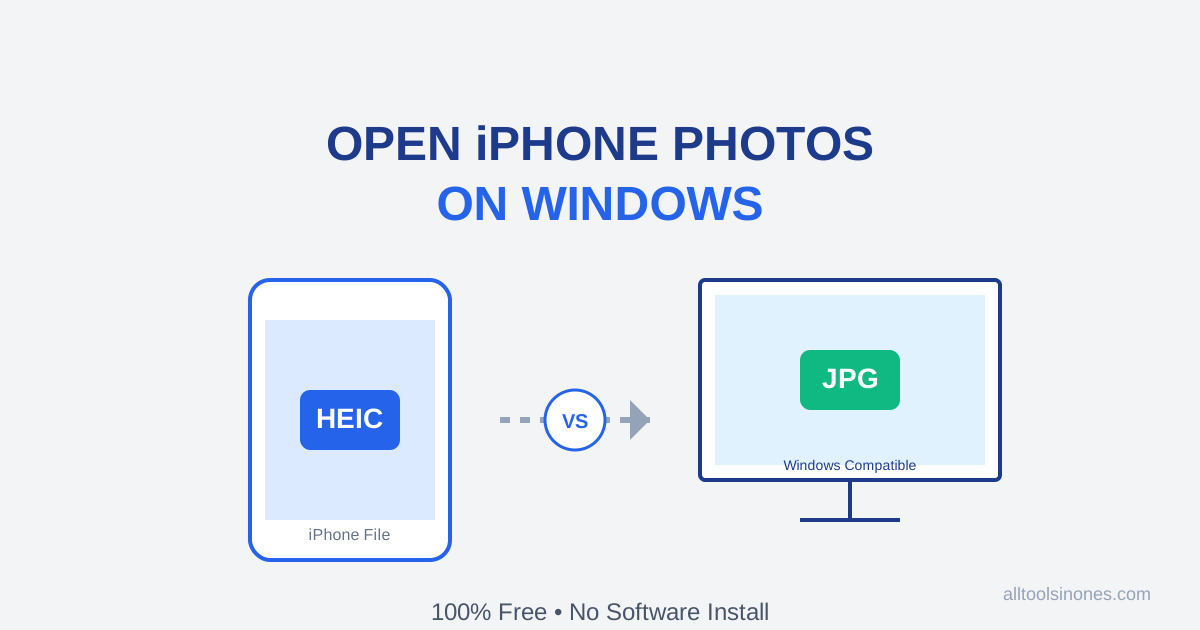
- Apple uses a modern format called HEIC (High Efficiency Image File). It’s great because it saves space without losing quality.
- Windows, by default, is old-school. It prefers JPG. It doesn't natively "speak" HEIC language unless you install a special codec (translator).
So when you move a file from iPhone to PC, your computer literally doesn't know how to display the pixels. You have two choices: Install a translator, or convert the file.
Option 1: The "Official" Way (Costs Money)
You can go to the Microsoft Store and buy the HEIF Extension. It costs roughly $0.99 / ₹80.
Is it expensive? No. But it involves adding your credit card to the Microsoft Store, dealing with updates, and honestly—it’s the principle of it. Opening a photo should be free.
Option 2: The Smart Way (Free & Instant)
The fastest way to fix this is to convert the file to a universal format like JPG. Once it's a JPG, it will open on Windows, Android, Smart TVs, and pretty much every device in the universe.
But be careful. Many online converters ask you to upload your photos to their server.
Do you really want to upload your personal vacation photos to a random server? Probably not.
That's why we built the ATIO HEIC Converter. It runs 100% in your browser. Your photos never leave your computer. It’s faster, safer, and completely free.
How to Convert HEIC to JPG (Step-by-Step):
- Go to our HEIC to JPG Converter.
- Drag and drop your iPhone photos (select up to 10 at a time).
- Watch them convert instantly (it takes milliseconds).
- Click "Download All" to save them as JPGs.
Pro Tip: Watch Your File Size
HEIC files are super efficient. A high-quality photo might only be 2MB.
When you convert to JPG, the file size often increases because JPG is an older, less efficient format. If you are converting hundreds of photos for storage, this can add up.
The Fix: After converting them to JPG, run them through our Image Compressor. It will shrink them back down by 50-80% without visible quality loss, saving your hard drive space.
Conclusion: Don't Let File Formats Stop You
Technology should work for you, not against you. You don't need to be a tech wizard to view your memories.
Next time Windows gives you that blank icon stare, don't reach for your credit card. Just drag, drop, and convert.
It’s free, it’s private, and it just works.

Deep Mistry
Digital Marketing Expert | AI & Business Growth Specialist
Deep Mistry is a Digital Marketing Expert specializing in AI-driven growth strategies and business scaling. With an academic background in Computer Science and an MBA, he combines technical expertise with real-world marketing experience. Deep is also a researcher and book author, focused on building practical, privacy-first digital tools that help individuals and businesses work smarter.
Connect on LinkedInDisclaimer:
The information provided in this article is for educational purposes only and does not constitute professional advice. Estimates and calculations are based on market trends and may vary. Please consult a qualified expert before making significant financial or career decisions.