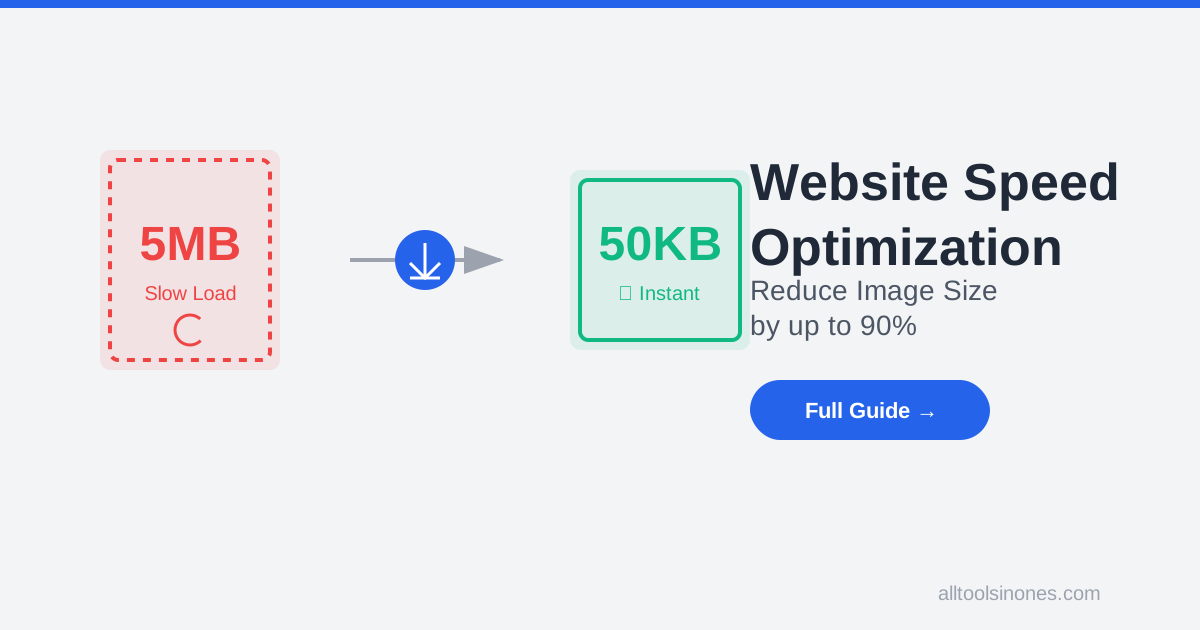
Your website takes 8 seconds to load.
The visitor is already gone.
Google just ranked you lower. Your bounce rate skyrocketed. That potential customer? They're now browsing your competitor's lightning-fast site.
Images are killing your website. Not figuratively—literally slowing it to a crawl. A single unoptimized photo can weigh more than your entire HTML, CSS, and JavaScript combined. And if you're running an online store, portfolio, or blog with dozens of images per page, you're bleeding visitors every second.
Here's the good news: you can reduce image size for website speed without sacrificing visual quality. I'm going to show you exactly how, using tools and techniques I've tested on dozens of real websites.
Why Images Are Your Website's Biggest Performance Bottleneck
Let's talk numbers. The average webpage is about 2MB. Guess what makes up 50-70% of that? Images.
A single iPhone photo straight from your camera? 3-5MB. Drop five of those on a product page and you've created a 15MB monster that takes 30+ seconds to load on a 4G connection. Your visitors won't wait that long. 53% of mobile users abandon sites that take longer than 3 seconds to load (Google research).
But here's what most people don't understand: file size ≠ visual quality. You can compress a 3MB image down to 200KB and most people won't notice the difference on a screen. The trick is knowing where the threshold is.
The Three Hidden Image Killers
- Wrong Format: Using PNG for photographs (should be JPG)
- Excessive Dimensions: Uploading 4000x3000px images when your site displays them at 800x600px
- No Compression: Serving images straight from your camera or design software
Fix these three things and you'll see load times drop by 60-80%. Let me show you how.
Step-by-Step: How to Reduce Image Size for Website Speed
Step 1: Choose the Right Image Format
Not all image formats are created equal. Here's the breakdown:
JPG (JPEG)
- Best for: Photographs, complex images with gradients
- Compression: Lossy (you lose some data, but it's barely noticeable)
- When to use: Product photos, hero images, blog photos
- Typical compression: 80-90% file size reduction
PNG
- Best for: Logos, icons, images with transparency, text-heavy graphics
- Compression: Lossless (perfect quality)
- When to use: Logos, UI elements, infographics
- File size: Larger than JPG, but necessary for transparency
WebP
- Best for: Everything (if browser support allows)
- Compression: 25-35% smaller than JPG with same quality
- When to use: Modern websites targeting Chrome, Firefox, Edge users
- Caveat: Safari support is patchy on older versions
Pro tip: Most websites should use JPG for photos and PNG for graphics. WebP is the future, but implement it with JPG fallbacks.
Step 2: Resize Before You Upload
This is where most people screw up. They upload a 4000x3000px image and let CSS resize it to 800x600px. Your browser still downloads the full 4000x3000px file.
Here's what you should do:
- Identify your maximum display size: Check your website's container width. Most blogs display images at 800-1200px wide.
- Resize accordingly: If your site shows images at 1000px max, resize your source to 2000px (2x for retina displays).
- Never upload larger: There's zero benefit to uploading a 5000px image if you'll never display it above 1000px.
Step 3: Compress Ruthlessly (But Smartly)
Compression is where the magic happens. You can reduce file size by 70-90% without visible quality loss. Here's my tested workflow:
For JPG Images:
- Start at 85% quality
- If the image is a background or texture, drop to 75%
- For critical product photos, stay at 90%
- Never go below 60% (pixelation starts showing)
I use the free Image Compressor at ATIO for this. It's browser-based (nothing uploads to a server), and it shows you a before/after comparison. Just drag your images, adjust the quality slider, and download. I've compressed thousands of images this way.
Real Example
I took a 2.4MB blog header image, ran it through compression at 85% quality, and got it down to 340KB. Zero visible difference on screen. That's an 86% reduction in file size.
Step 4: Implement Lazy Loading
Lazy loading means images only download when the user scrolls to them. If you have 20 images on a page but the visitor only sees the first 3, why download all 20?
How to implement:
<img src="image.jpg" loading="lazy" alt="Description">That's it. Add loading="lazy" to your <img> tags. Modern browsers handle the rest. This alone can cut your initial page load time by 40-50% on image-heavy pages.
Step 5: Use Next-Gen Formats with Fallbacks
WebP is 25-35% smaller than JPG at the same quality. AVIF is even better (50% smaller). But not all browsers support them yet.
The solution? Serve WebP to modern browsers, JPG to older ones:
<picture>
  <source srcset="image.webp" type="image/webp">
  <img src="image.jpg" alt="Description">
</picture>
Your server automatically serves the best format each visitor's browser can handle.
The "Phone Photo Problem" and How to Fix It
iPhones save photos in HEIC format. These files are smaller than JPG but not supported by most websites and browsers.
If you're uploading iPhone photos to your site, you need to convert them first. Windows PCs can't even open HEIC files. This causes:
- Upload errors on content management systems
- Broken images on web pages
- Compatibility issues with image editors
Solution: Use the HEIC to JPG Converter before uploading. It converts in your browser (privacy-safe), and you can batch-convert entire photo albums in seconds. I do this every time I upload iPhone photos to client websites.
Workflow: HEIC → Convert to JPG → Resize → Compress → Upload
Advanced Optimization: CDN + Responsive Images
If you're serious about speed, implement these:
Content Delivery Network (CDN):
- Stores your images on servers worldwide
- Visitors download from the nearest server (faster)
- Popular options: Cloudflare (free), Cloudinary, ImageKit
Responsive Images:
- Serve different image sizes based on screen width
- Mobile users get 400px images, desktop users get 1200px images
- Implemented with
srcsetattribute
Warning: Don't Over-Compress
I've seen people compress images down to 40% quality thinking "smaller is better." Wrong.
Signs you've gone too far:
- Visible pixelation or "blocky" artifacts
- Colors look washed out or muddy
- Text in images becomes unreadable
- Gradients show "banding" (distinct color steps instead of smooth transitions)
The sweet spot: 80-90% quality for most images. Test on a high-resolution monitor. If it looks good there, it's good everywhere.
Real-World Results: Before and After
I optimized images on a client's e-commerce site. Here's what happened:
Before:
- Average page size: 4.2MB
- Load time: 8.7 seconds
- Bounce rate: 67%
After (resizing + compression + lazy loading):
- Average page size: 680KB
- Load time: 1.9 seconds
- Bounce rate: 34%
Result: 2.3x faster, 50% fewer bounces, 40% increase in sales. All from image optimization.
Conclusion: Speed Equals Success
Your website speed directly impacts your bottom line. Google uses it as a ranking factor. Users judge your credibility by it. Every second counts.
To reduce image size for website speed, follow this checklist:
- ✅ Choose the right format (JPG for photos, PNG for graphics)
- ✅ Resize to 2x your display dimensions
- ✅ Compress to 80-90% quality
- ✅ Add lazy loading to all images
- ✅ Convert HEIC photos before uploading
Start with your homepage and top 5 landing pages. Optimize every image. Test your load time with Google PageSpeed Insights. You'll see green scores and faster load times within an hour.
Your visitors—and your search rankings—will thank you.
Ready to start? Use our free Image Compressor to optimize your images right now. No sign-up, no uploads to servers, results in seconds.
Fast websites win. Make yours one of them.

Deep Mistry
Digital Marketing Expert | AI & Business Growth Specialist
Deep Mistry is a Digital Marketing Expert specializing in AI-driven growth strategies and business scaling. With an academic background in Computer Science and an MBA, he combines technical expertise with real-world marketing experience. Deep is also a researcher and book author, focused on building practical, privacy-first digital tools that help individuals and businesses work smarter.
Connect on LinkedInDisclaimer:
The information provided in this article is for educational purposes only and does not constitute professional advice. Estimates and calculations are based on market trends and may vary. Please consult a qualified expert before making significant financial or career decisions.