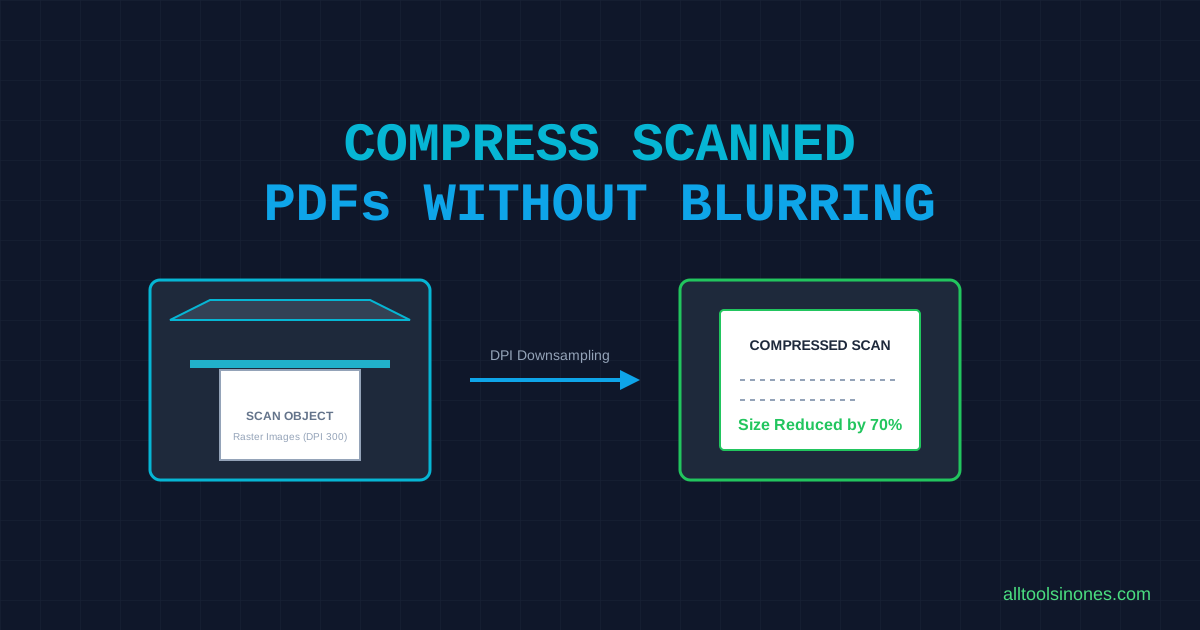
If you scanner software output is a huge multi-megabyte PDF document, you are dealing with a scanned PDF. These documents are fundamentally different from text-based PDFs generated by editors. In this practical guide, we explain why scanned documents are so large, how to shrink them efficiently, and what quality trade-offs occur during compression.
Direct Answer: You can compress a scanned PDF without losing readability by downsampling its underlying image sheets. In our browser-based tool, this is done by rendering each page onto an HTML canvas and re-saving it at a reduced quality setting. This optimizes the pixel maps while maintaining stamps, signatures, and readable text outlines.
Why Scanned PDFs Are So Large
Unlike standard text PDFs that store letters as vector glyph coordinate references, scanned PDFs are wrapper folders for raster image sheets. When a paper page passes through a scanner:
- Bitmap Conversion: The scanner takes a digital photo of the page and wraps it in a PDF container.
- Resolution Bloom (DPI): Scanning at 300 or 600 DPI (dots per inch) creates millions of pixels per page, bloatting file sizes.
- Color Profiles: Full-color scans contain much more color depth data per pixel compared to gray-scale or black-and-white modes, expanding size.
Scanned PDF vs Text PDF
Understanding the difference helps explain compression results:
- Text PDF (Vector-Based): Lightweight (around 50KB). Contains font layouts, searchable text characters, and vector coordinates. Does not respond well to image downsampling.
- Scanned PDF (Raster-Based): Heavy (typically 2MB to 10MB). Contains only full-page images. Highly responsive to image quality adjustments and resolution downsampling.
What Happens When Our Compressor Processes a Scanned PDF
Our compressor executes a client-side execution pipeline locally on your machine CPU:
- Buffer Read: Reads the raw document bytes into your browser tab memory.
- HTML Canvas Rendering: Renders each scanned page viewport onto a headless HTML5 Canvas at a 1.5 scale.
- JPEG Downsampling: Converts the canvas pixel coordinates into an optimized JPEG image string data URL using lossy downsampling, set by the quality slider level.
- PDF Assembly: Rebuilds the output document using jsPDF by overlaying the optimized JPEGs as consecutive pages.
Because scanned PDFs are already image wrappers, this canvas pipeline aligns perfectly with their native properties, stripping out redundant pixel resolutions.
Why Scanned PDFs Can Compress Well
High-resolution scanner outputs contain substantial redundant pixel clusters. Reducing the layout resolution using a 1.5 canvas viewport scale and applying a Recommended (0.5) JPEG quality factor allows the compressor to compress file weight by 50% to 80% without destroying legibility.
Why Some Scanned PDFs Barely Shrink
Scanned PDFs will barely shrink if the source images inside are already highly optimized or compressed using low-quality settings, leaving no redundant pixels for downsampling to target. If the scan is already tiny, re-rendering it might even increase the output size.
How Compression Affects Scan Quality
Lossy JPEG compression introduces quality changes that you should verify:
- Text Readability: High-contrast borders around tiny fonts may show slight JPEG artifacts, but stay readable at 100% zoom.
- Signatures and Handwriting: Thin signature ink lines can lose sharpness if the Extreme slider is chosen.
- Hand-Stamped Marks: Visual details on stamps or ink seals are flattened and may appear slightly pixelated.
Inspect the output document carefully to ensure important details remain legible before deleting your original file.
How to Compress a Scanned PDF
Follow these local steps to optimize your scans:
- Navigate to our Private PDF Compressor.
- Click Select PDF File and choose your scanned file.
- Set the Compression Level slider to the middle Recommended quality.
- Click Compress PDF Now. The progress log tracks pages.
- Download the output file and check readability.
Can a Scanned PDF Stay Searchable After Compression?
No. Because our local browser-based compressor rasterizes pages onto an HTML canvas and re-assembles them as JPEGs, **the original text selection layer is flattened**. If your scanned PDF was previously run through an OCR program and had a searchable text layer, **this search layer will be stripped**. Keep your original scan file if you require searchable text layers.
When Our Browser-Based Approach May Not Be Enough
Choose alternative server-based vector optimizers if you must preserve OCR search layers, active hyperlinks, or if you are compressing extremely large scanned documents (over 100MB) on a phone or laptop with low memory capacity, as canvas allocation can cause browser tab crashes.
Frequently Asked Questions
Why are scanned PDFs so large?
They are large because they store pages as high-resolution images rather than editable text character descriptions.
Will the compressed PDF remain searchable?
No. The rasterization process flattens the document, removing any hidden OCR search indexes.
Can I compress a scanned PDF without uploading it?
Yes. Our tool processes the canvas render directly in your browser memory, keeping your documents private on your device.
Factual Sources referenced: Mozilla PDF.js architectural specs, jsPDF documentation, and ISO 32000 Document Management standards.