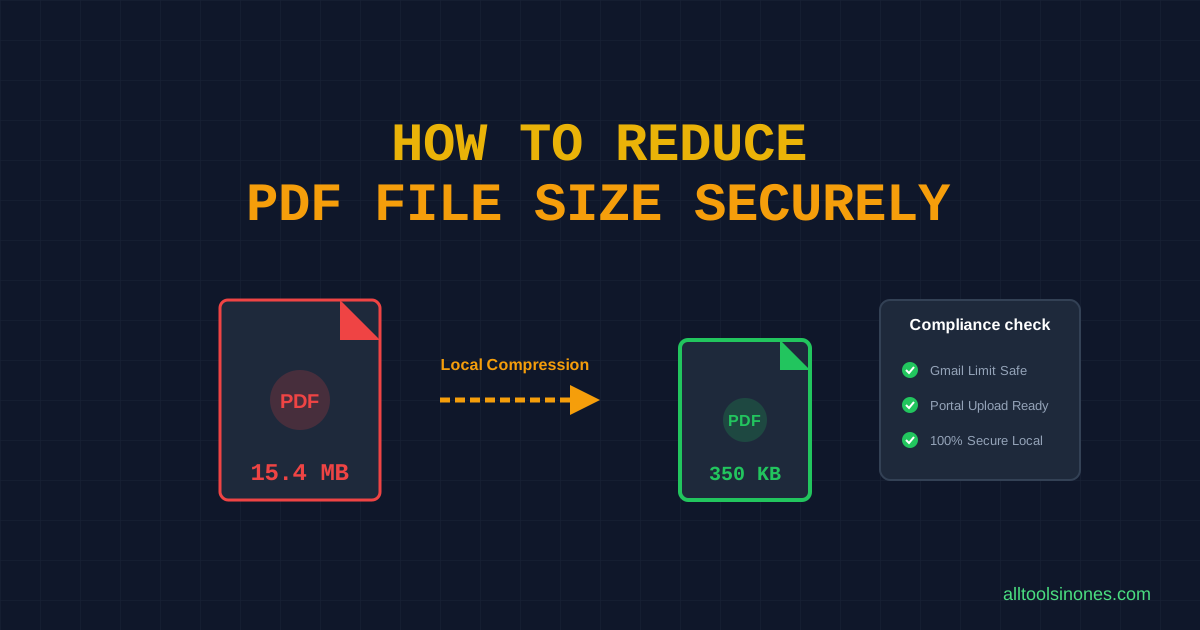
If you have ever tried to submit a resume to a job board or attach an invoice to an email, you have likely run into file size restrictions. Many portals restrict document uploads to under 100KB, 200KB, or 500KB, and email providers like Gmail restrict attachments to 25MB. In this comprehensive guide, we explain how to reduce PDF file size to meet these targets.
Direct Answer: The fastest way to reduce PDF file size is using an in-browser client-side compressor to downsample embedded images and metadata locally. The actual achievable file size reduction is constrained by the document's original contents (such as original page dimensions and image density) and quality settings. There is no guaranteed target size.
Why Are PDF Files So Large?
PDF documents can grow to dozens of megabytes due to several factors:
- High-Resolution Scans: If a document is scanned at 300 or 600 DPI, each page is stored as a high-density image map, inflating file weight.
- Embedded Fonts: Incorporating full vector definitions for multiple font variations adds significant structural weight.
- Embedded Media: High-resolution photos, vector diagrams, and layout sheets occupy extensive storage.
- Unused Metadata: Creator profiles, document revision logs, and raw XML metadata blobs swell the PDF trailing wrapper.
The Fastest Way to Reduce PDF Size
You can optimize your document instantly by following these local steps:
- Navigate to our Private PDF Compressor.
- Upload your document by dragging it into the dashed interface box.
- Choose the Recommended compression level on the slider.
- Click "Compress PDF Now" and download your resized copy from local browser memory.
How Much Can You Reduce a PDF?
There is no single "guaranteed 90% reduction" index. Achievable reduction ratios depend entirely on document type:
- Image-Heavy PDFs and Scans: Typically shrink by 40% to 80% because downsampling reduces raw pixel volume.
- Pure Text PDFs: Contain vector glyph strings with no images, resulting in minor compression and occasionally size increases if forced into JPEGs.
- Previously Compressed PDFs: Documents that have already gone through compression passes cannot be optimized further.
How to Reduce a PDF to a Target Size
Many users search for separate tools to compress PDFs to exact sizes like 100KB, 200KB, 500KB, or 1MB. In reality, these are all handled by the same adjustment principles. Hitting a specific target size is a balancing act between page count and quality:
- Target: Under 1MB or 500KB: Easily achievable for short scanned contracts or multi-page text documents. Set the compression level to Recommended.
- Target: Under 200KB or 100KB: Highly restrictive. If your file contains multiple scanned pages, compressing it below 100KB may result in visual block artifacts. If the first compression pass is not enough, you may need a stronger compression setting or a different source file scanned at a lower DPI.
Why Your PDF May Barely Shrink
If you run a PDF through a compressor and the size remains unchanged, it is usually because the images are already highly optimized or the file consists entirely of vector text and lines. In-browser canvas compressors rasterize pages: if a file has no raster images, converting vector lines to JPEGs can actually increase file weight.
Does Smaller Always Mean Better?
No. Shrinking a document involves structural compromises:
- Text Searchability: Because our client-side compressor rasterizes pages to JPEGs, the vector text layer is flattened. You will lose selectable text search features.
- Accessibility: Flattened JPEGs are inaccessible to page screen-readers.
- Outline Bookmarks: Nested PDF outline indexes and clickable hyperlink pathways are stripped.
How to Compress a PDF for Email or Upload Limits
To prepare your files for strict upload constraints, use this structured methodology:
- Identify the Limit: Standard email hosts like Gmail enforce a 25MB ceiling (source: Google Gmail Help center). Government application portals like SSC or UPSC limit file sizes to 100KB or 200KB (source: official submission instructions).
- Run the Tool: Execute a compression run using the Recommended slider quality setting.
- Verify Size: Check the size of the generated PDF in your downloads directory.
- Readability Check: Open the compressed document and verify that the text remains readable before uploading.
What to Do When the PDF Is Still Too Large
If a document cannot be compressed below your target limit without losing all readable quality, try these troubleshooting alternatives:
- Split the Document: Use a tool to split a long PDF into multiple parts (e.g., Part 1 and Part 2) to upload them separately.
- Re-Scan at lower DPI: If you generated the PDF from a scanner, re-scan the paper document at 150 DPI instead of 300 DPI or 600 DPI, and export it in gray-scale rather than full-color mode.
- Optimize Source Document: Remove unnecessary images, cover pages, or vector drawings from the source doc (e.g. inside Word) before exporting it to PDF.
Frequently Asked Questions
How can I make a PDF smaller?
Select your PDF inside our tool, choose a quality level on the slider, and click "Compress PDF Now" to download your optimized copy instantly.
Can I compress a PDF to exactly 100 KB?
No tool can guarantee a precise target size like 100KB for all files. If the original PDF is massive or contains dozens of pages, shrinking it to 100KB will result in illegible images.
Why did my PDF barely shrink?
The document is likely already optimized, or contains only vector text and no images.
Does compressing a PDF reduce quality?
Yes. Client-side tools downsample visual components, leading to a tradeoff between file size reduction and contrast sharpness.
Factual Sources referenced: Google Gmail Attachment Policies, UPSC Submission Manuals, and Adobe PDF Format Specifications.