Compress PDF Files Privately
Reduce PDF file size locally in your browser. Your documents are processed entirely on your device and are never uploaded to any server.
Select PDF File
Supported: PDF documents up to 100MB.
How your PDF is processed
In-Browser Execution
All parsing, image downsampling, and PDF rebuilding happen locally in your web browser tab. Once the code is loaded from the CDN, processing runs client-side on your device CPU.
No Server Transmission
We do not upload or send your documents to any remote cloud servers. Once you refresh or close this tab, the file data in the browser memory is discarded.
Gmail Attachment Limits Explained
- 📧Gmail Limit: Maximum 25MB per email (including all attachments)
- ☁️Google Drive: Files over 25MB automatically upload to Drive
- ⚡Faster Sending: Smaller files send and download faster
- 📱Mobile Friendly: Easier to open on phones with limited data
Compress PDF Files for Gmail Email Attachments
Trying to email a large PDF but getting the "Attachment size limit exceeded" error? Gmail has a strict 25MB limit for all attachments combined. Our free PDF compressor reduces your file size to under 25MB so you can send it directly via email without using Google Drive links.
Why Gmail Has a 25MB Attachment Limit
Gmail enforces the 25MB limit for several reasons:
- Server Load: Prevents strain on Google's email servers
- Recipient Limits: Other email providers may have smaller limits
- Download Speed: Large files take too long to download
- Mobile Data: Protects users on limited mobile data plans
- Storage: Reduces inbox storage consumption
⚠️ Common Gmail Error:
"Attachment size limit exceeded. The total size of attachments must not exceed 25 MB." - This error appears when your PDF (or combined attachments) exceeds Gmail's limit. Compress your PDF first!
How to Send Large PDFs via Gmail
Option 1: Compress the PDF (Recommended)
- Use this tool to reduce file size to under 25MB
- Attach compressed PDF directly to email
- Recipient downloads file normally
- No Google Drive link needed
- Works with all email clients
Option 2: Use Google Drive (Gmail's Default)
- Gmail automatically uploads files over 25MB to Drive
- Recipient gets a Drive link instead of attachment
- Requires recipient to have Google account (sometimes)
- Link may expire or have access issues
- Not ideal for professional/official emails
Option 3: Split into Multiple PDFs
- Split large PDF into smaller parts
- Send multiple emails with different parts
- Inconvenient for recipient
- Risk of missing parts
💡 Pro Tip:
Compressing your PDF to 20-24MB (slightly under the limit) ensures successful sending even if you add a small cover email or signature image!
When You Need to Compress PDFs for Gmail
- Job Applications: Sending resume + portfolio PDFs
- Business Documents: Contracts, proposals, reports
- Academic Submissions: Thesis, research papers, assignments
- Invoices & Bills: Scanned documents with multiple pages
- Presentations: PDF versions of PowerPoint slides
- E-books: Sharing PDF books or manuals
How to Use This Tool
- Upload your large PDF file (any size)
- Choose compression level (recommend: Medium)
- Click "Compress PDF Now"
- Download compressed PDF
- Attach to Gmail and send successfully
Gmail Attachment Limits by Email Provider
Different email providers have different limits:
- Gmail: 25MB per email
- Outlook/Hotmail: 20MB per email
- Yahoo Mail: 25MB per email
- ProtonMail: 25MB per email
- Corporate Email: Varies (often 10-25MB)
Compressing to under 20MB ensures compatibility with all email providers!
⚡ Quick Fix:
If your PDF is 30-50MB, use "Medium" compression. For 50-100MB PDFs, use "Extreme" compression. For PDFs over 100MB, consider splitting into multiple files.
Tips for Smaller PDF File Sizes
- Reduce Image Quality: Images are the main cause of large PDFs
- Remove Unnecessary Pages: Delete blank or irrelevant pages
- Avoid Scanned PDFs: Scanned documents are much larger than digital PDFs
- Use Text, Not Images: Text-based PDFs are smaller than image-heavy ones
- Compress Before Sending: Always compress large PDFs proactively
What Happens When You Exceed Gmail's Limit?
- Gmail shows "Attachment size limit exceeded" error
- Email won't send until you remove/compress attachment
- Gmail may suggest using Google Drive instead
- Draft is saved but not sent
- You waste time trying to send
✅ Perfect for Gmail:
Under 25MB | Compressed PDF | All pages intact | Readable quality | Direct attachment (no Drive link)
Compression Quality Guide
Light Compression (High Quality):
- Best for: Important documents, contracts, official submissions
- Reduction: 20-40% smaller
- Quality: Excellent, almost no visible difference
- Use when: Quality is more important than size
Medium Compression (Recommended):
- Best for: General emails, business documents, presentations
- Reduction: 50-70% smaller
- Quality: Very good, suitable for most purposes
- Use when: Balancing quality and file size
Extreme Compression (Low Quality):
- Best for: Very large files, internal sharing, drafts
- Reduction: 70-90% smaller
- Quality: Acceptable, some pixelation visible
- Use when: File size is critical
Alternative Solutions for Very Large Files
If your PDF is over 100MB even after compression:
- WeTransfer: Free up to 2GB, link expires in 7 days
- Google Drive: Share link, requires Google account
- Dropbox: Share link, free up to 2GB storage
- OneDrive: Microsoft's cloud storage
- File Splitting: Split into multiple smaller PDFs
Why Direct Attachment is Better Than Drive Links
- No Account Needed: Recipient doesn't need Google account
- Permanent: File stays in email forever
- Professional: Looks more professional in business emails
- Offline Access: Recipient can download and access offline
- No Permissions: No "Request Access" issues
Privacy & Security
Our PDF compressor:
- ✅ Processes files entirely in your browser
- ✅ No files uploaded to our servers
- ✅ Complete privacy - we never see your PDFs
- ✅ Works offline after page loads
- ✅ No file size limits
- ✅ Free forever, no registration required
Related Conversion & Utility Tools
Handpicked utility tools from the same category that you might find useful.
Related Articles
Insights and guides to help you make the most of our tools.

Is Your 'Free' PDF Converter Stealing Your Data? Why Server-Side Uploads Are Dangerous
You just uploaded your bank statement to a free PDF converter. Do you know where it went? Read this urgent guide on the dangers of server-side data extraction and how to protect yourself.
How to Compress a PDF Without Uploading It
Need to shrink a PDF document but worried about data leaks? Learn how browser-based compression works, its security advantages, and technical limitations.
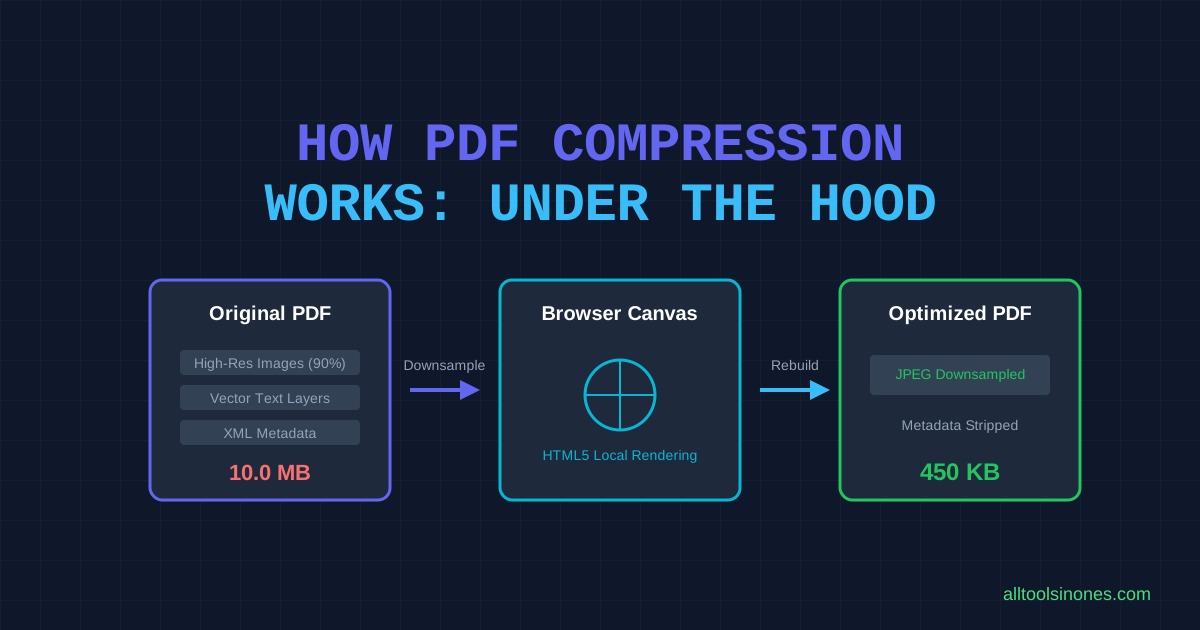
How PDF Compression Works: What Happens to Your File
Ever wondered what actually happens when you compress a PDF? Take a deep look into images, layouts, local rendering, and quality tradeoffs.